
Accessing your Plesk hosting via direct login to Plesk panel.
When your new hosting subscription is created, you will usually receive a "New Account Email" from the hosting system
That email will contain your initial Plesk log-in details that can be used to access the panel directly.

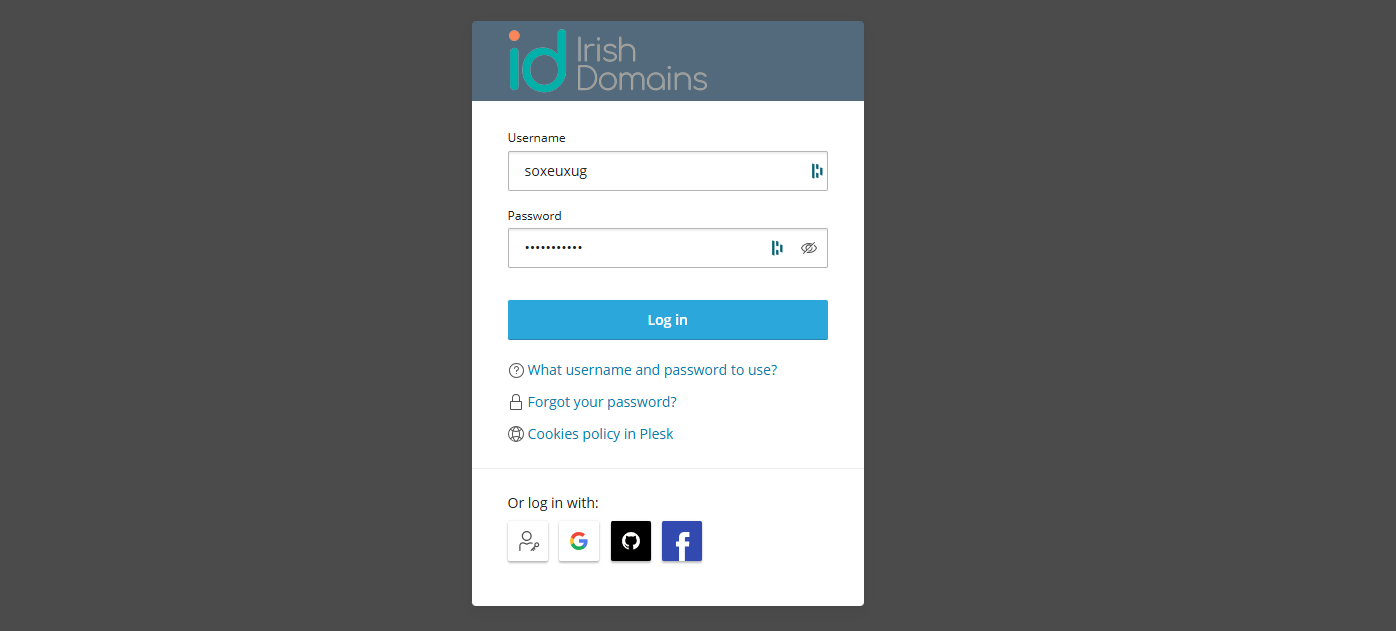
Simply click on the login link and enter the needed username and password to access Plesk.
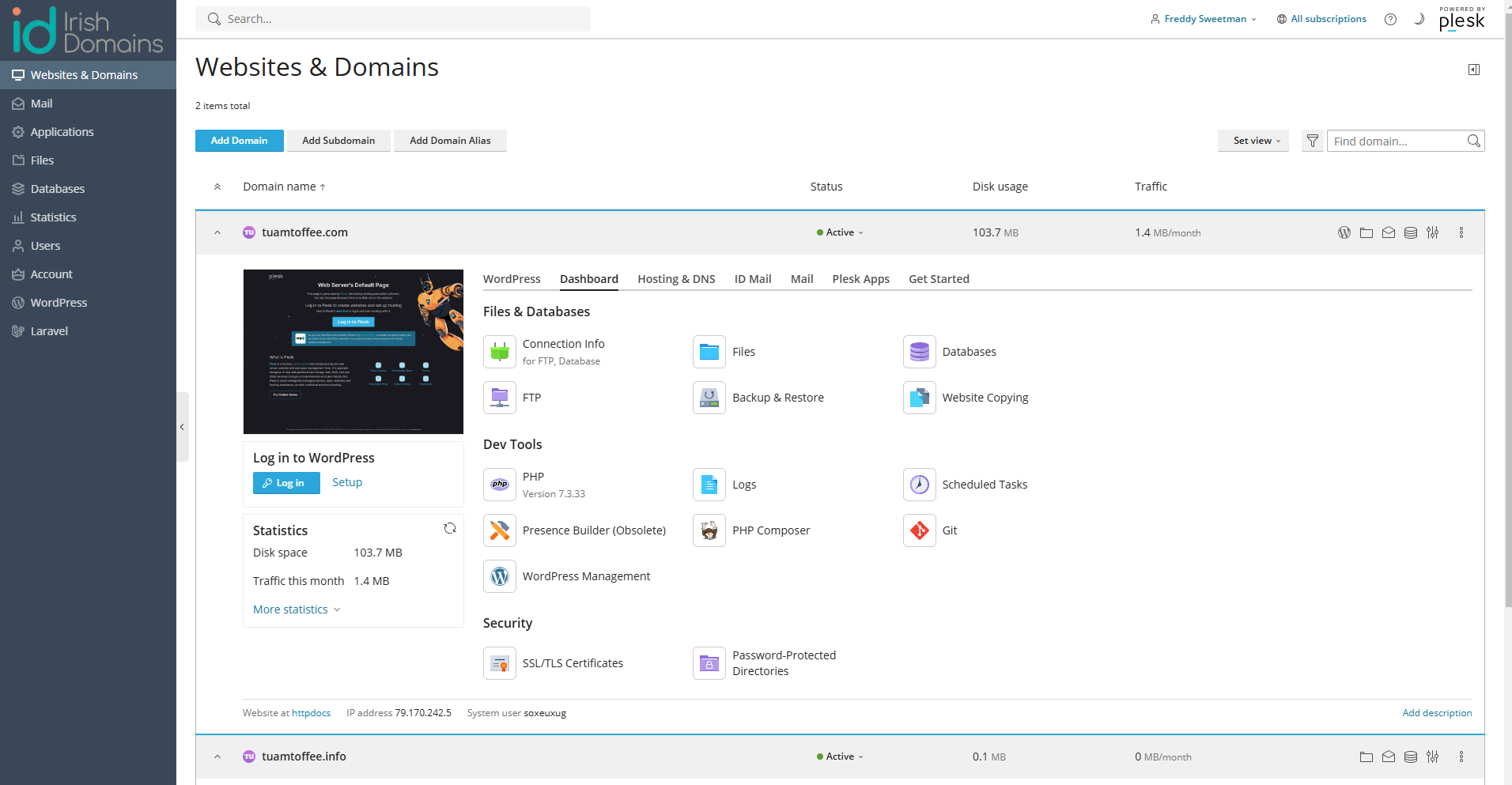
This should log you in to your Plesk Dashboard.
Retrieving or changing Plesk direct access details.
If you no longer have access to your New Account email, or if accessing Plesk via your Irish Domains account is not working for you, then you can retrieve your access details as follows:
First, log in to your Irish Domains account
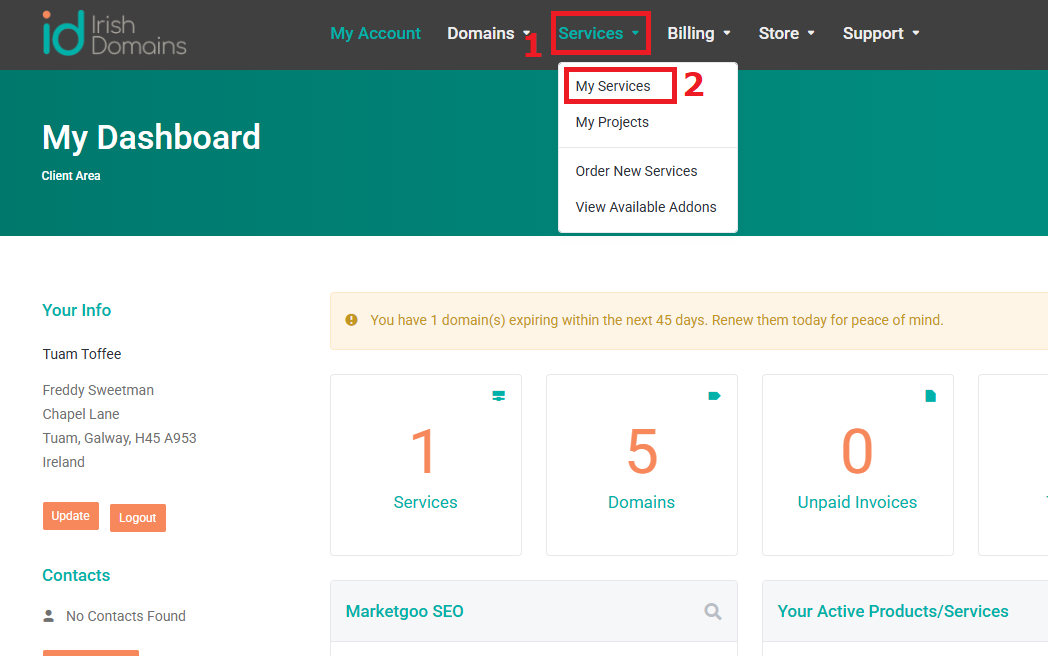
On your Dashboard, click on 'Services' [1] at the top of the webpage and from the list of options given, click on 'My Services' [2]
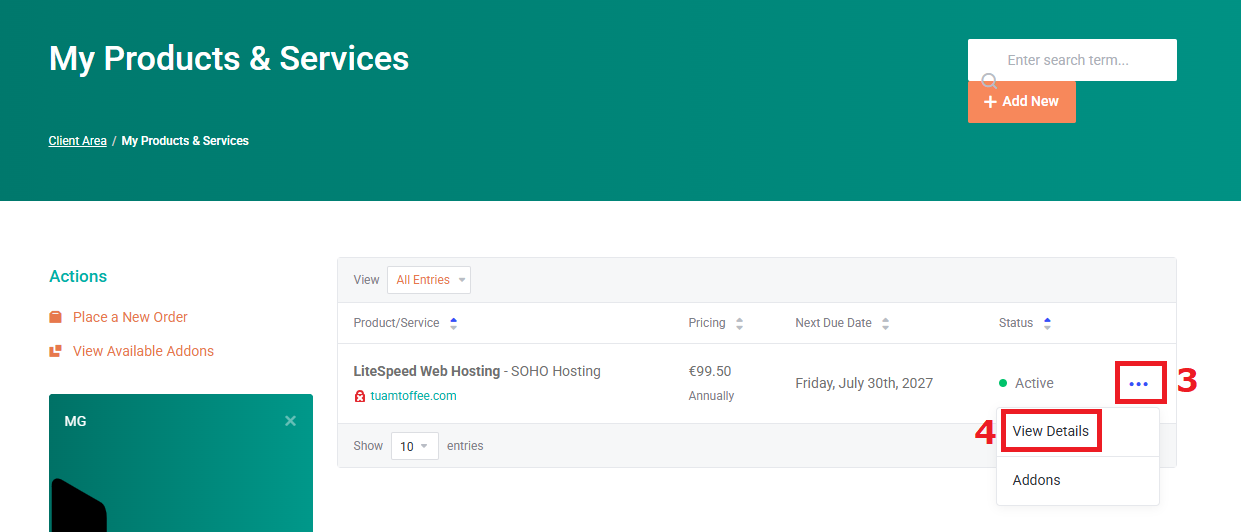
Locate the web hosting service you want to manage, click the three dots [3] beside it on the right-hand side.
Another list of suggestions will pop up. Click on 'View Details' [4].
This will display your web hosting details page. To access Plesk, you need three pieces of information.
- Plesk Server Name/URL
- Plesk Username
- Plesk Password
The Server Name/URL can usually be found simply by clicking the 'Plesk One-Click Login' icon or link [5] below.
When you click this it will normally log on directly on to Plesk, but in any event should take you to the correct web server login page.
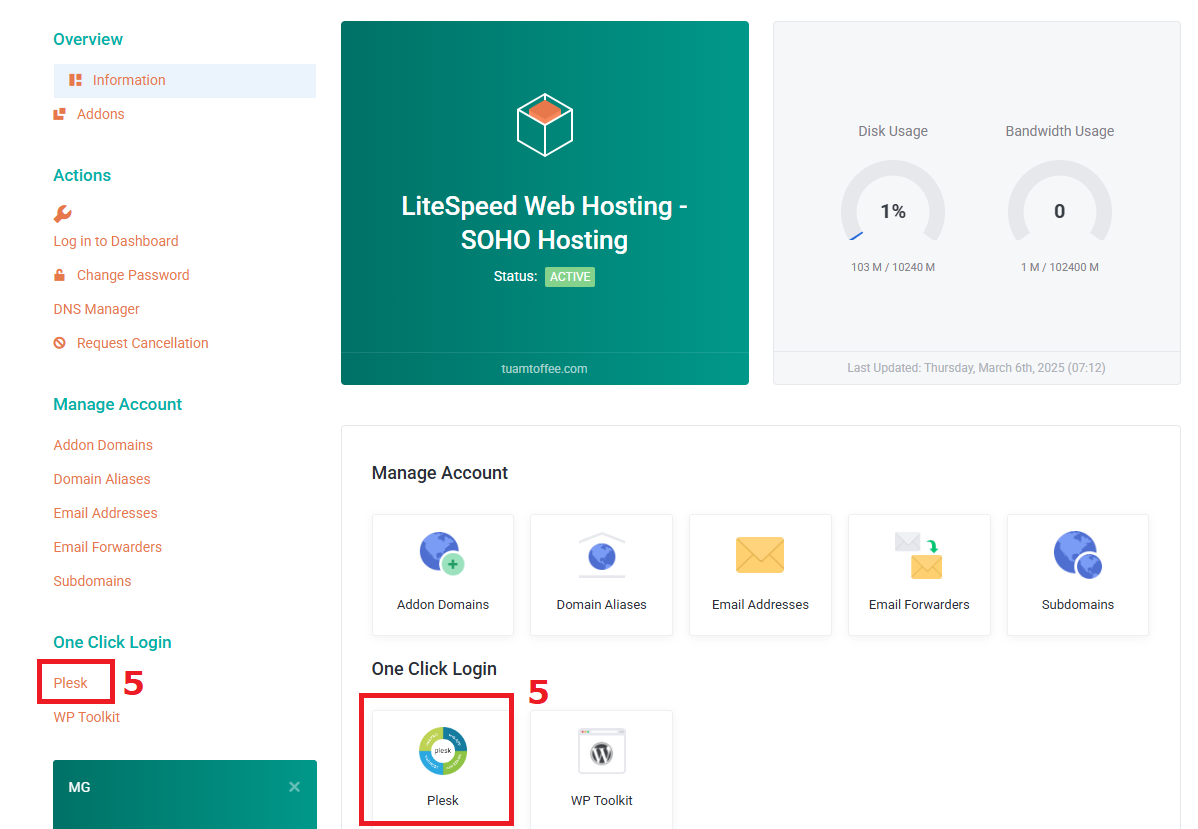
If, for some reason this is not working and you cannot identify the server URL, scroll down to the bottom of the product details page and there will be a box showing the subscription details.
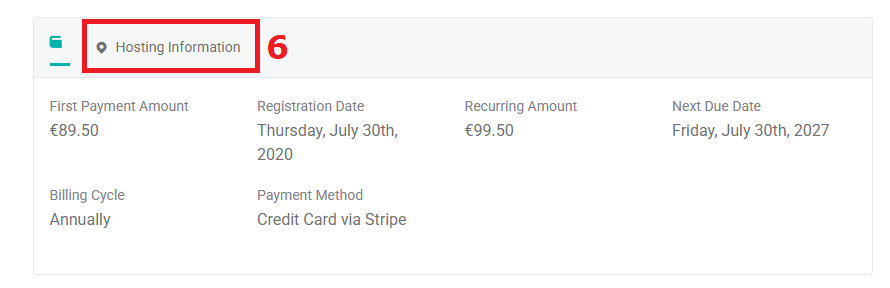
Click the 'Hosting Information' tab [6] to reveal the server information.
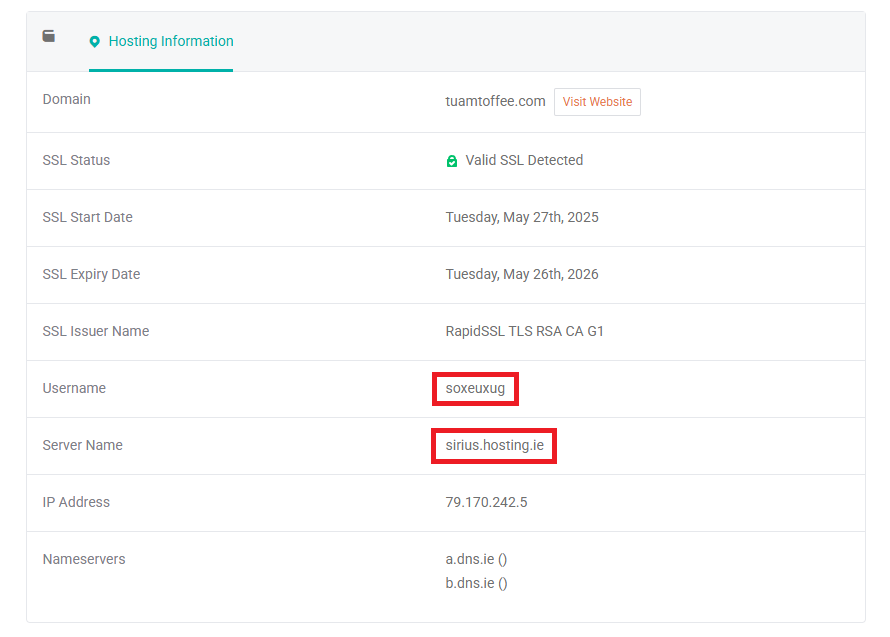
The hosting details will display both the needed Plesk Server Name, and the Plesk Username for your subscription.
Finally, if you do not know the Plesk Password, you can set a new one using the 'Change Password' link [7] in the menu on the left hand side of the product details page.
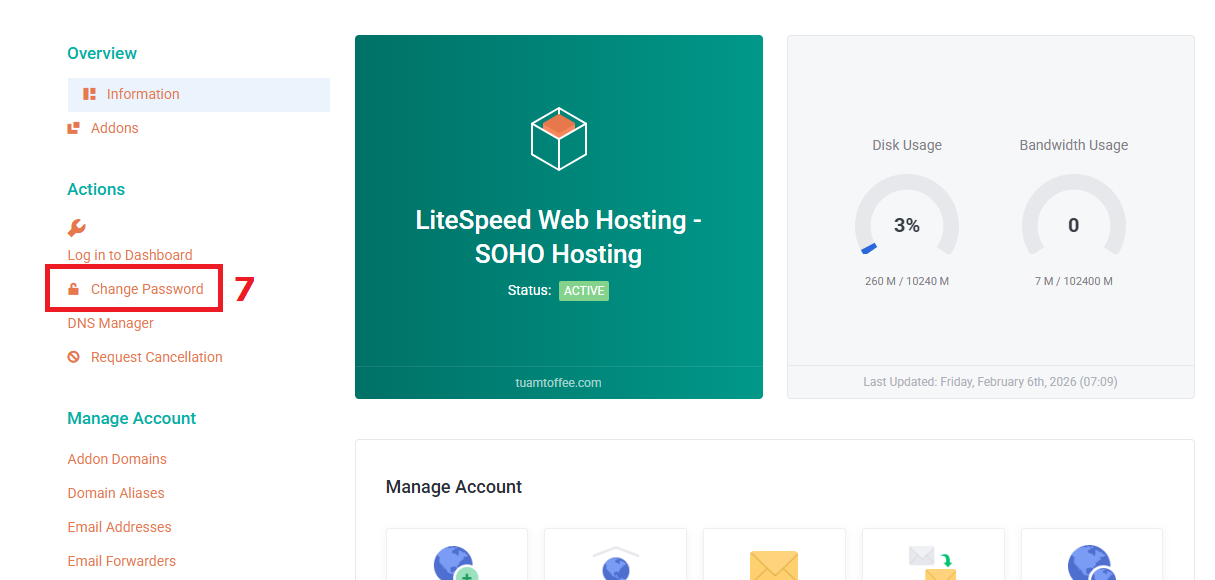
Clicking this link will display the Password reset dialog:
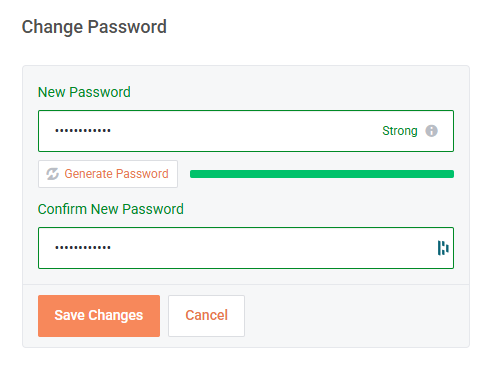
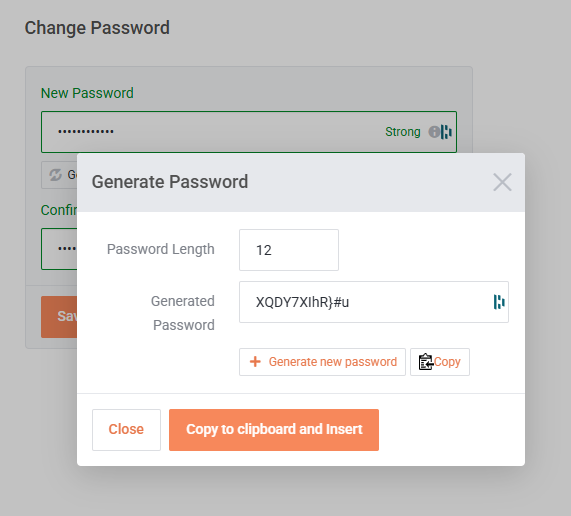
You should now enter (and confirm) a new STRONG password, or you can use the 'Generate Button' to suggest and pre-fill a password - make sure to note this down as it cannot be displayed again afterwards.
Once you have all three pieces of information, you should be able to navigate directly to the server using your preferred Web Browser, and log in using the username and reset password.